If you have a MySQL database, most likely you already need or will need to access a backup of your database. The best way to prevent is to maintain a daily (or as needed) backup routine, and that’s exactly what we’ll learn to do in this article. We will learn how to create MySQL backup routines on Windows and Linux, our goal will be to create a script that creates a backup of our database in a zipped file with date stamp and a daily routine to run, our script will also be able to to delete files older than 7 days.
What is MySQL?
I won’t go into too much technical data about the history of MySQL, you can check it out in this link , but in short, MySQL is a database management system (DBMS), which uses the SQL language - Structured Query Language. Structured Query Language . It is currently maintained by Oracle Corporation and distributed under two licenses: LPG and Trade license .
Creating Daily MySQL Backups on Windows
We are going to learn how to create a complete script on Windows, for that you need to have previously installed MySQL and have the user data readable in the database to be copied and we will use the 7zip to compress our files.
First, let’s create the file that will contain our bank access credentials: config.cnf .
# User settings [mysqldump] user=root password=password
And now the file that will perform the entire backup process.
#Set-ExecutionPolicy -ExecutionPolicy Bypass $mysqlpath = “C:Program FilesMySQLMySQL Server 5.5bin” # Path to MySQL installation $backuppath = “C:backups” # Path to store backups $7zippath = “C:Program Files (x86)7-Zip” # Path to install 7zip $config = “C:config.cnf” # Path to file with credentials $database = “blog” # Name of our database $errorLog = “C:error_dump.log” # Path to our log file $days = 7 # Days to keep backup files $date = Get-Date $timestamp = ” ” + $date.day + $date.month + $date.year + ”_” + $date.hour + $date.minute $backupfile = $backuppath + $database + ”_” + $timestamp +“.sql” $backupzip = $backuppath + $database + ”_” + $timestamp +“.zip”
Start the backup process
CD $mysqlpath .mysqldump.exe —defaults-extra-file=$config —log-error=$errorLog —result-file=$backupfile —databases $database /c
Start the 7zip compression process
CD $7zippath .7z.exe to -tzip $backupzip $backupfile
Delete the raw file
Del $backupfile
Delete old files
CD $backuppath $oldbackups = gci *.zip*
for($i=0; $i -lt $oldbackups.count; $i++){ if ($oldbackups[$i] .CreationTime -lt $date.AddDays(-$days)){ $oldbackups[$i] | Remove-Item -Confirm:$false } }
Task Scheduler - Creating the Schedule
To create the schedule in Windows you can use the Task Scheduler.
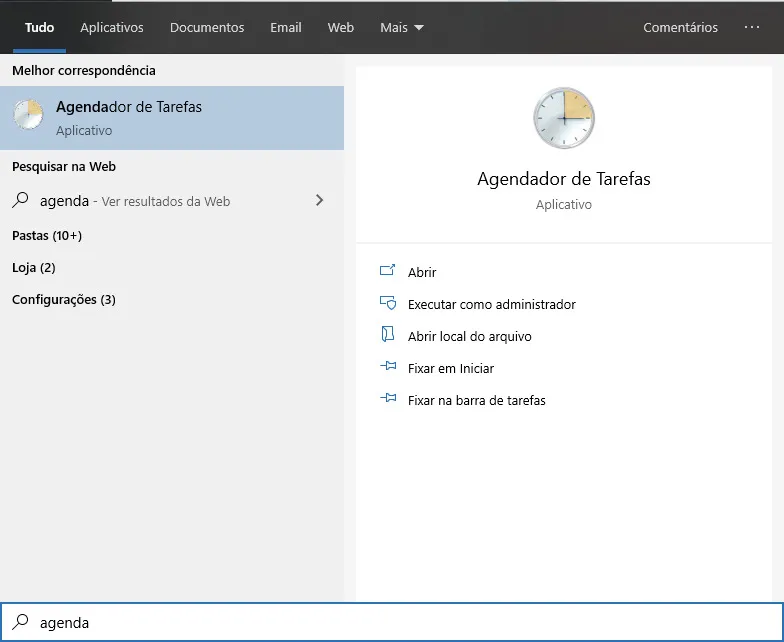
Creating Daily MySQL Backups on Linux
Let’s now learn how to create a complete script on Linux, for that you need to have previously installed MySQL and have the user data readable in the database to be copied. We will also use the bzip2 to compress our files, if you don’t want to use this functionality, comment out lines 28 and 29.
#!/bin/bash
DB_NAME=‘dbname’ # Database name DB_USER=‘dbuser’ # Database User DB_PASS=‘dbpass’ # Bank password DB_PARAM=‘—add-drop-table —add-locks —extended-insert —single-transaction -quick’ # Parameters for backup https://dev.mysql.com/doc/refman/8.0/en /mysqldump.html
MYSQLDUMP=/usr/bin/mysqldump # Path to mysqldump binary BACKUP_DIR=/backup/mysql # Path to save backups DAYS=7 # How many days of backups do you want to keep
DATE=`date +%Y-%m-%d` BACKUP_NAME=mysql-$DATE.sql BACKUP_TAR=mysql-$DATE.tar BACKUP_BZ2=mysql-$DATE.tar.bz2
echo “Starting the backup process…”
#Generating sql file echo “Backing up the database $DB_NAME to $BACKUP_DIR/$BACKUP_NAME” $MYSQLDUMP $DB_NAME $DB_PARAM -u $DB_USER -p$DB_PASS > $BACKUP_DIR/$BACKUP_NAME
Compressing tar file
echo “Consolidating file into tar…” tar -cf $BACKUP_DIR/$BACKUP_TAR -C $BACKUP_DIR $BACKUP_NAME
Compressing file with bzip2
echo ” — Compressing file in bzip2 …” bzip2 $BACKUP_DIR/$BACKUP_BZ2
Deleting raw files
echo ” — Deleting unnecessary files …” rm -rf $BACKUP_DIR/$BACKUP_NAME
Deleting older files
find /backup/mysql -name “*.tar.bz2” -type f -mtime +$DAYS -exec rm -f {} ;
Save the file as mysql_backup.sh; Give him execute permission with the command chmod +x mysql_backup.sh ; Now run your backup file with ./mysql_backup.sh .
Crontab - Creating the Schedule
To create the routine that runs our daily backup on Linux, let’s use the crontab .
Open your Crontab:
$crontab -e
Now let’s create a schedule that runs every day at 00:00, to do this add the following line at the end of the file:
0 0 * * * sh ~/mysql_backup.sh