This translation is machine-generated and pending review.
By default the Ubuntu terminal distinguishes between folders and files whose names start with uppercase and lowercase letters; I personally find this counterproductive and it is one of the first tweaks I make on a fresh OS installation.
For those who also don’t like a case-sensitive terminal, there is a solution that will make your life easier.
But first I should remind you that this setting is global and will affect the other users of the system!
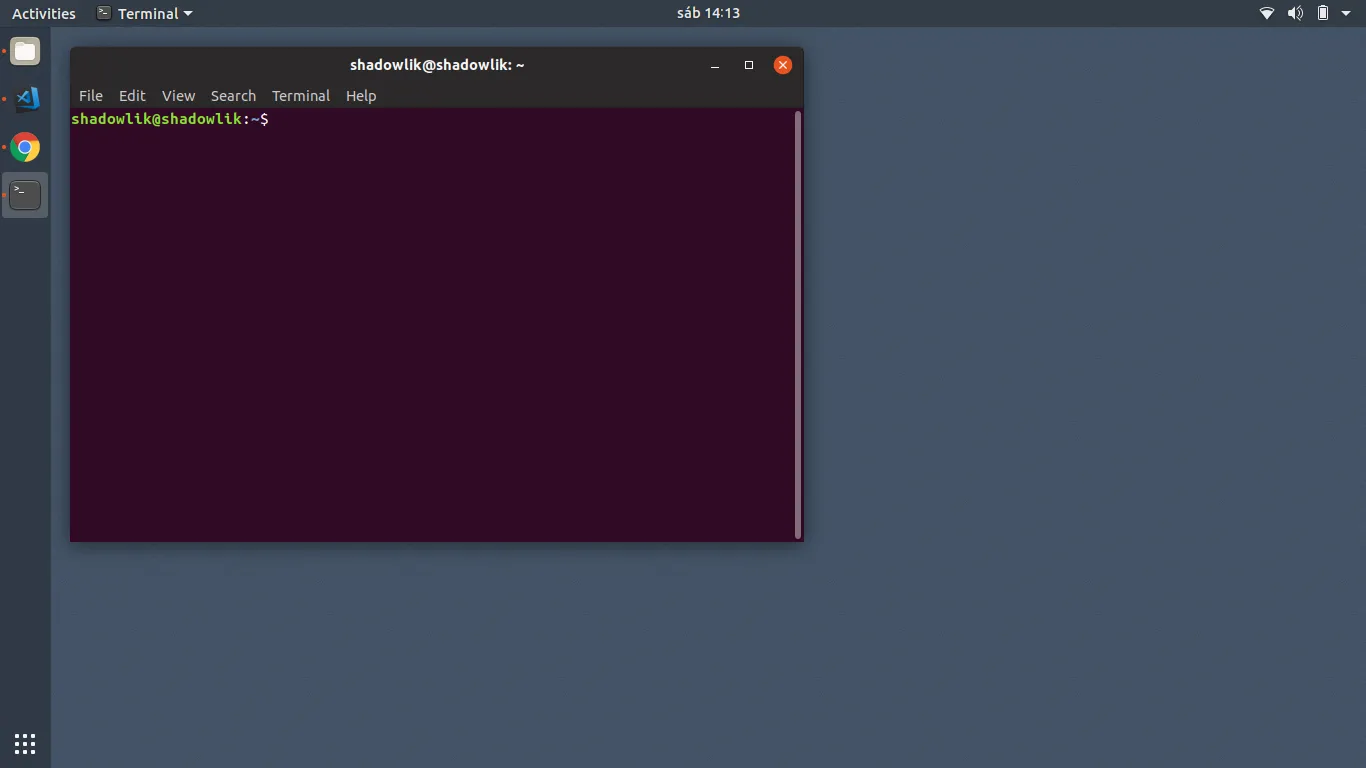
So let’s get to it; obviously first open the terminal (ctrl + alt + t).
Create a backup
Always, always, always make a backup when you are modifying configuration files:
$ sudo cp -p /etc/inputrc /etc/_inputrc.bk
The -p flag makes the file copy preserve the permissions, owner and date.
If something goes wrong you can simply revert to the original file:
$ sudo cp /etc/_inputrc.bk /etc/inputrc
Configuring
There are other ways to edit the file; to keep things simple and avoid explaining editor-specific commands, we will use a simple command that will add the necessary configuration to the last line of the file:
$ sudo echo “set completion-ignore-case on” >> /etc/inputrc
Testing
An easy way to test is to navigate to your user folder (home) and try to navigate to the Desktop folder.
To test we need to open a new terminal so that the change is loaded:
$ cd ~ $ cd desk # Press tab $ cd Desktop # Voilà