
This translation is machine-generated and pending review.
I started working on a Google Spreadsheet to keep track of my blog posts and some other tracking metrics, and since I hate repetitive work, I soon got tired of copying, pasting, and updating all the information manually. That is when I discovered there is a way to connect my spreadsheet directly to the database of my WordPress installation and run some queries to automatically extract the data I need. All of this is possible through Google Apps Script, a scripting platform developed by Google for building lightweight applications using the JavaScript programming language.
* If you are familiar with Excel, Apps Script is the VBA of Google Sheets.
Google Apps Script provides access to the JDBC connector, which lets us connect our Google Sheet to a MySQL (up to version 5.7), Microsoft SQL Server, Oracle, or Google Cloud SQL database.
Let’s learn how to connect to our database, run queries, and display the results in a range of cells in our spreadsheet. If you don’t know JavaScript or are not very familiar with code, don’t worry: by following the steps in this article you will end up with an easy, generic function to run SQL queries without having to change almost anything.
Creating the Spreadsheet
Well, the first thing we need to do is create a new spreadsheet and open the Google Apps Script code editor:
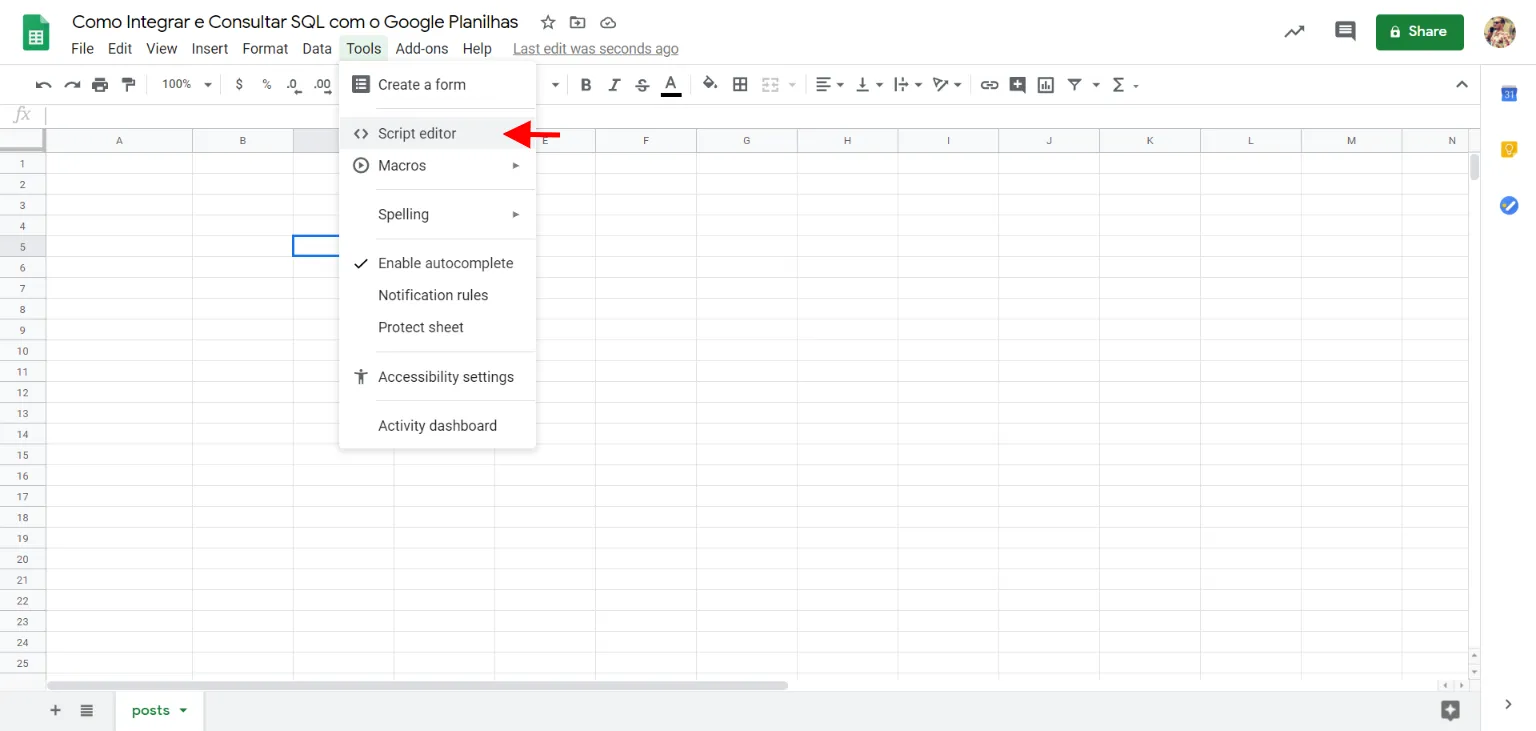
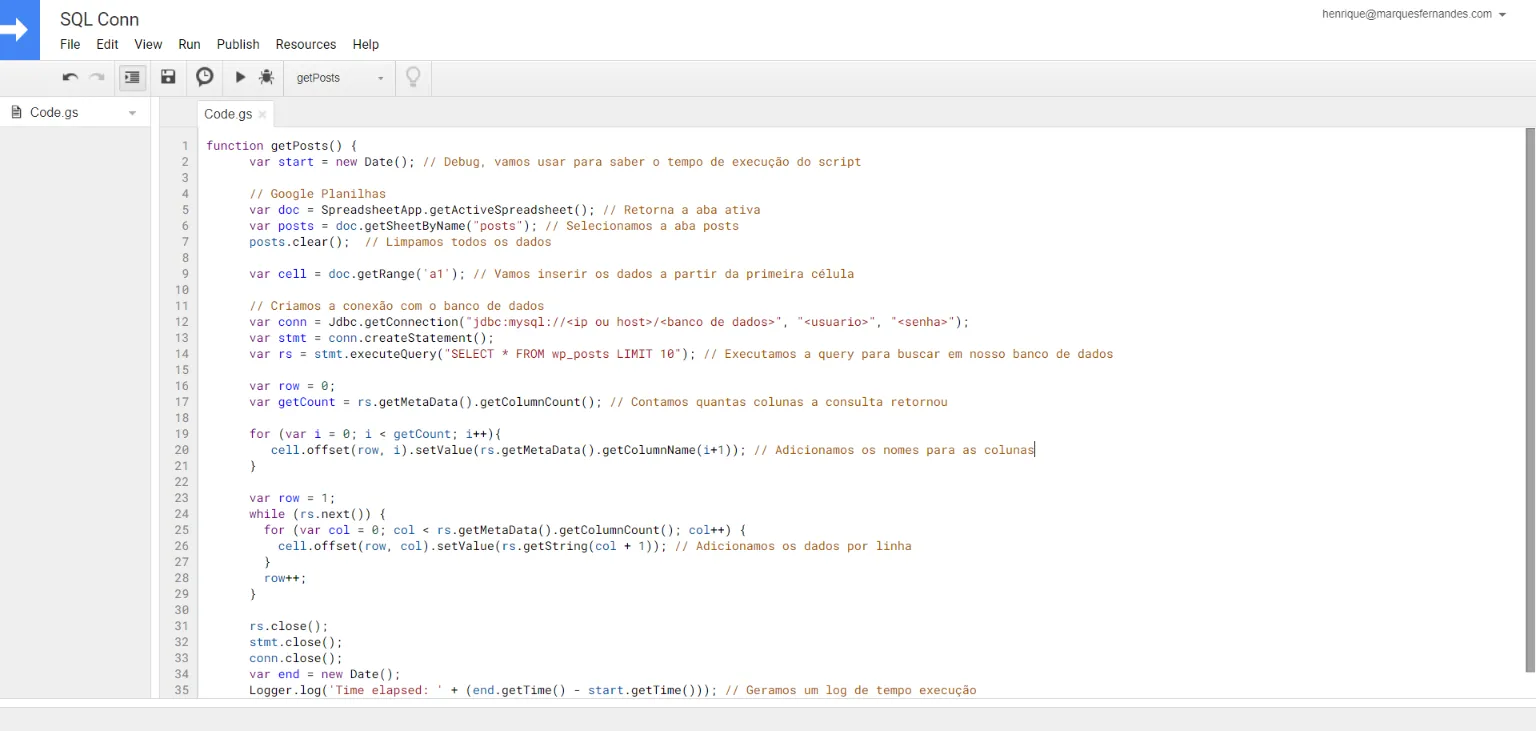
We will then have a code editor similar to the one below:
Creating the Apps Script to Connect to the Database
Now let’s copy the sample code into our file:
Change all the variables indicated at the start of the script to your connection settings. I recommend using the IP in the HOST variable, because Google Apps Script has some DNS resolution issues that can cause a false database connection error.
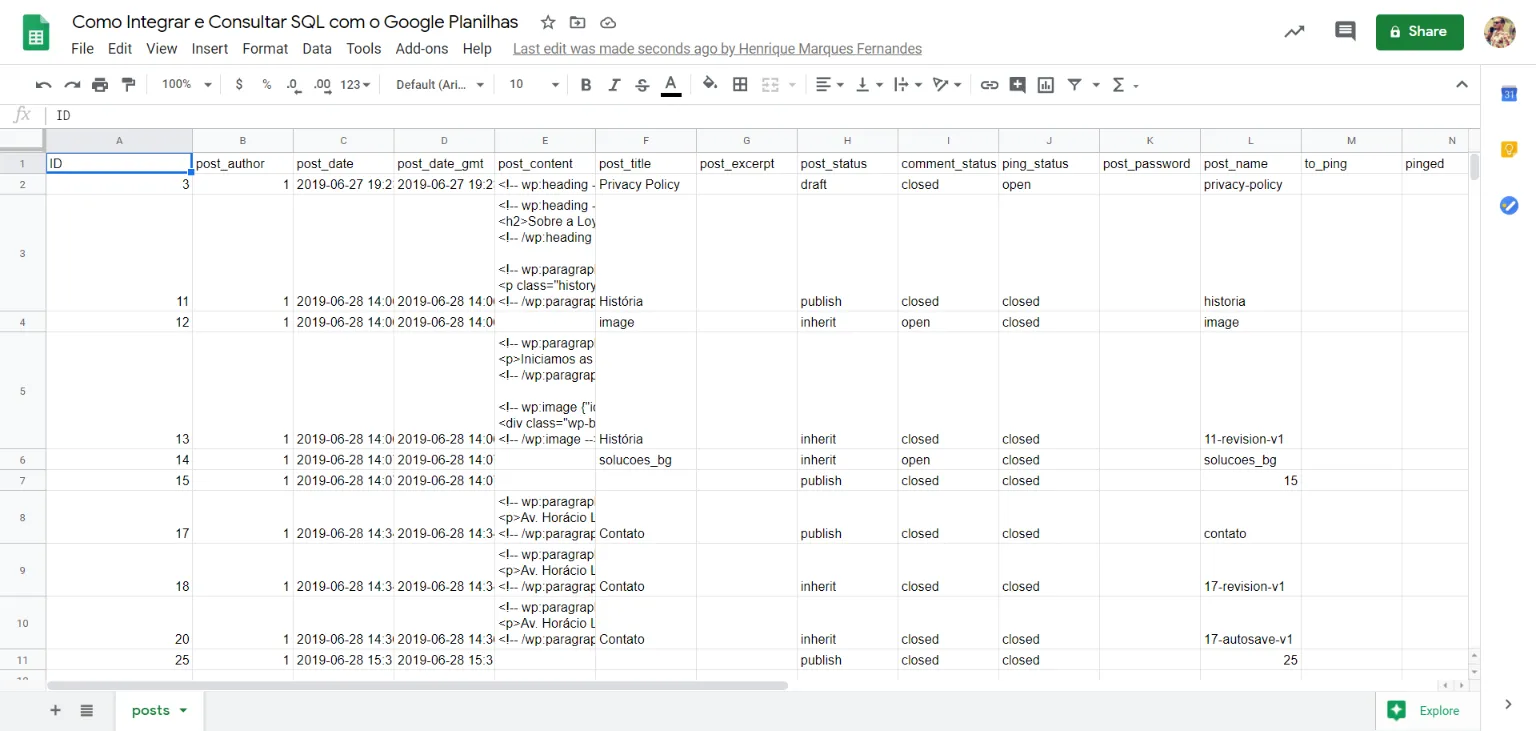
This script basically connects to the database. In the example I used a database from a WordPress installation, where I run a simple select, SELET * FROM wp_posts LIMIT 10, which returns 10 posts (rows) from the wp_posts table. With the result, we loop to create the headers and populate the rows in the posts tab. See the result below:
Conclusion
This was a simple example of how to connect to your database and run a SQL query. You can change this script and run any SQL query. This integration allows you to create a powerful tool: we can automatically extract and update data from our systems for analysis, report generation, and much more!